Flamecraft Controls
Input reference for PC and consoles so turns stay fast in solo or local sessions.
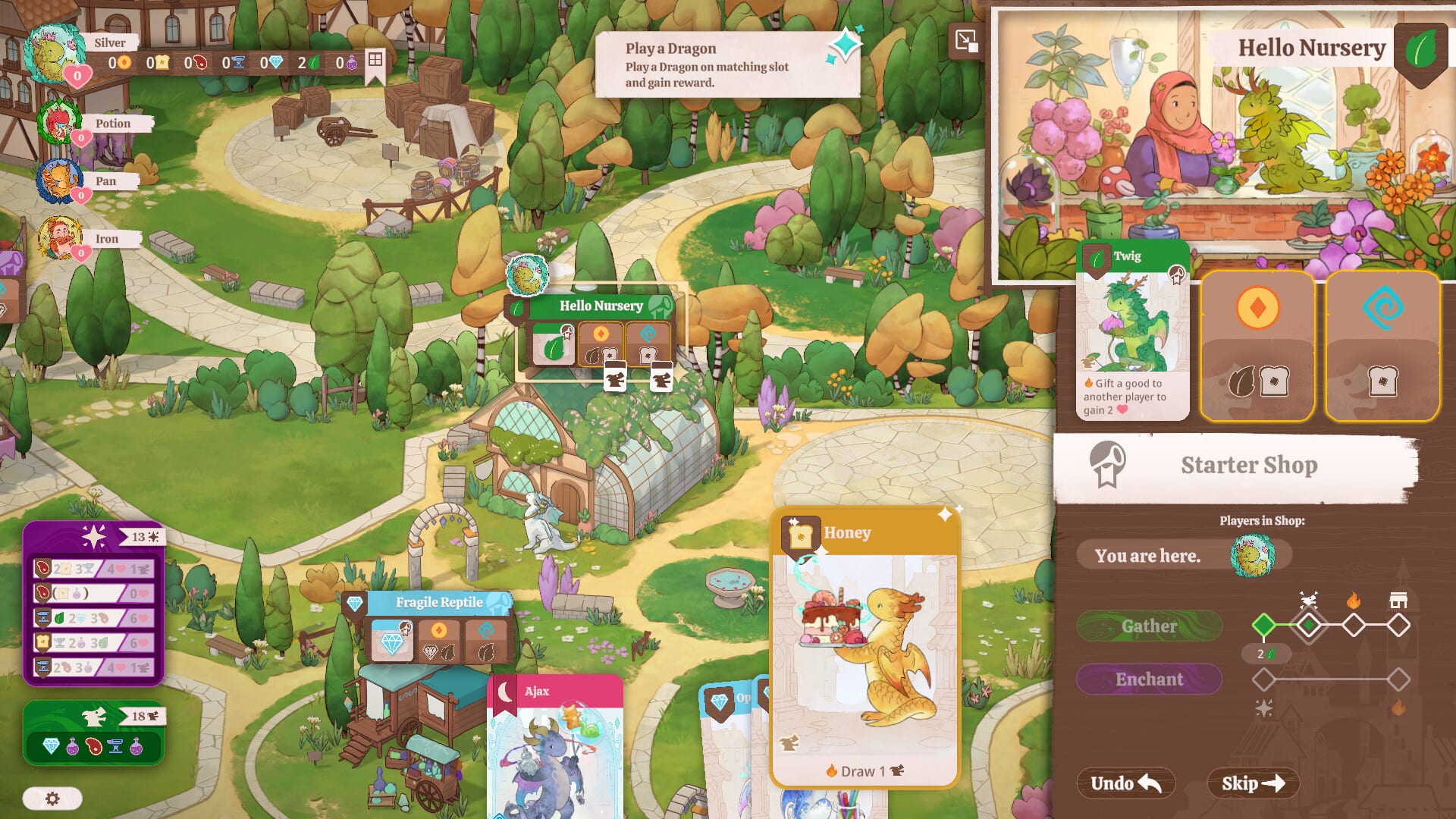
Flamecraft rewards players who can move through shops, dragon rosters, and enchantment menus without hesitation. This control reference summarizes the default bindings on Windows and macOS (Steam) and the practical console layout on PlayStation 5, Xbox Series X|S, and Nintendo Switch, so you can focus on reputation instead of hunting buttons.
PC keyboard and mouse
The Steam demo maps navigation to familiar strategy-game patterns. Expect WASD or arrow keys (or click-to-move) for cursor-style focus on the town board, Enter or Space to confirm selections, and Esc to back out of nested panels. Mouse users can click shops, dragons, and action buttons directly; keyboard users should lean on confirm/cancel keys to avoid mis-clicks during timed local turns.
Common quality-of-life keys include speeding through already-seen animations, toggling tooltips, and opening the resource tray. If a binding feels awkward on Mac, remap in Steam Input before you host a five-player session—mixed Mac and controller guests are rare, but solo Mac players benefit from tight keyboard flows documented in System Requirements.
Gamepad layout (all platforms)
Console and controller-on-PC play use a shoulder-button heavy layout: left stick moves focus between districts, A / Cross confirms, B / Circle cancels, and shoulder buttons cycle tabs in dragon and shop screens. Triggers often map to secondary actions such as viewing enchantment details or skipping redundant prompts.
In local multiplayer, the active player’s controller owns input until they end their turn; inactive players should avoid bumping sticks so pass-and-play stays fair. Read Multiplayer for etiquette and Solo Mode if you play alone with a controller.
Turn phases and input priorities
Each turn walks through gather, enchant, and fire-up steps. Learn the phase indicator at the top of the HUD so you know whether you are allowed to buy goods, place enchantments, or activate dragons. Mis-input usually happens when players try to enchant during gather—use cancel, reopen the correct tab, and continue.
Pair this page with How to Play for rules context and How to Enchant for when the UI expects enchantment tokens versus dragon abilities. Strategy players should keep Combo Strategy open on a second screen only in solo; in couch play, discuss combos verbally instead of pausing on a phone.
Accessibility and display
Increase UI scale in platform settings if text feels small on handheld Switch mode. Color-dependent cues should still be readable; if not, adjust brightness and check Monster Couch patch notes. Steam Deck and handheld PC users should verify touchpad or gyro are disabled if they cause accidental confirms.
Console-specific notes
PlayStation and Xbox demos follow platform-standard Options / Menu for settings and Share / Xbox button does not pause rule enforcement—use in-game pause if available. Switch players in tabletop mode may prefer detached Joy-Con for quick confirm buttons; pro controller recommended for five-player rotation.
Where to go next
Confirm your build through Platforms & Demo, then practice inputs while running the Demo Walkthrough. Study dragon abilities in Artisan Dragons once navigation feels automatic, and track practice goals with the Turn Planner. Launch updates land in Release Info if bindings change.
Teaching new players at the couch
When a friend has never played the board game, assign them the confirm button only for one round while you narrate phases aloud. Have them read the on-screen prompt while you point to the matching row in How to Play. After two rounds, rotate who reads prompts so everyone learns the HUD.
Steam Input and remapping
Steam Input profiles can duplicate Xbox glyph prompts on PlayStation controllers or vice versa. Pick one glyph style per session so five-player local groups do not misread face buttons. Mac players remapping keys should export profiles before major Steam client updates.
Patch watch
Demo patches sometimes add quality-of-life shortcuts—extra zoom, faster dragon sheet scrolling, or clearer enchantment highlights. After each update listed in Demo Review, replay the tutorial fight in Demo Walkthrough to see whether your muscle memory still matches the UI.
Frequently Asked Questions
Quick answers for new Flamekeepers.
Can I play Flamecraft with keyboard only on Mac?
Yes—the Steam demo supports keyboard navigation on macOS. Remap in Steam if confirm/cancel feels inverted.
How do five local players share controllers?
Pass the active controller or assign one pad per player if your setup supports it. See Multiplayer for turn order.
Do controls differ between demo and full game?
Bindings may receive polish before launch. Re-read this page after major patches listed in Release Info.
Where do I learn what each button does in combat?
Flamecraft is turn-based town strategy—not action combat. Start with How to Play for phase rules.